 |
Using Color-by-Example to Adjust Colors by Jake Albert |
|
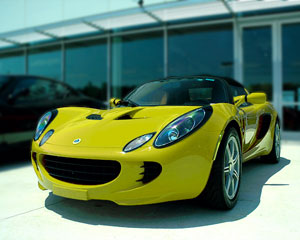
My wife an I were looking at this sports car and my wife said: "Wouldn't it look just fabulous if it matched the color of my cell phone." I said: "I don't know, I think it would look ridiculous in pink." |
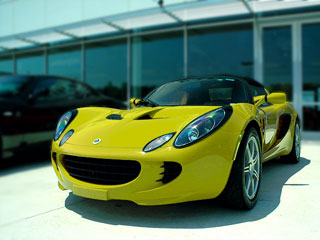 |
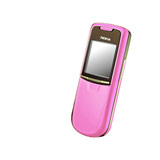
| To resolve this argument, I took a picture of the car, found a picture of my wife's phone and proceeded to combine the two. |
 |
| I wanted to replace the yellow with the pink and for such jobs I use Color-by-Example. It allows me to copy colors from one image into another. These are the steps I performed: | |
| 1. | I opened my car image in Photoshop (Photoshop Elements would do just as well.) |
| 2. | I selected Istet/Color-by-Example from the top Filter menu. |
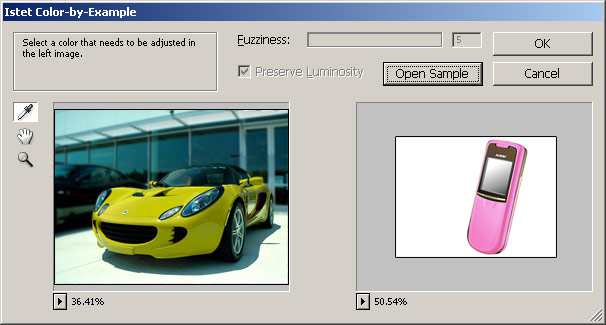
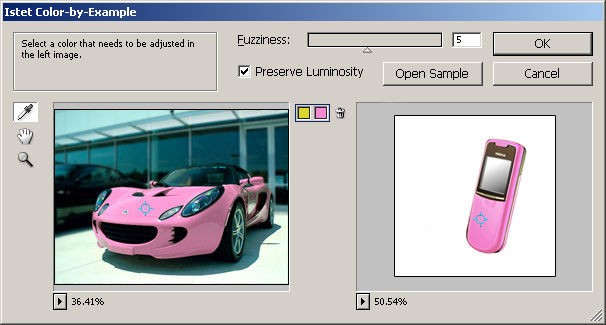
| 3. | I clicked on the Open Sample button to find my sample image in the file system and load it into Color-by-Example. Color-by-Example remembers the latest sample you use, so I don't have to keep opening the same sample over and over again. At this point the Color-by-Example window looked like this: |
 |
|
| 4. |
I selected the color-picker tool and clicked right in the middle of the car hood. Then I clicked in the middle of the cell phone. Color-by-Example matched the left color to the right. |
 |
|
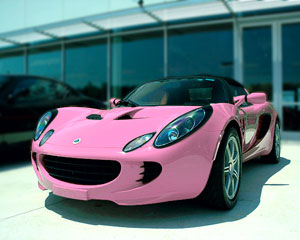
| My task was completed in just seconds. I showed the result to my wife and said: "See: it looks ridiculous!" She answered: "I don't know, I think it looks kind-a fabulous." | |
| Before | After |
 |
 |